Deploying Azure SQL Database by hand is useful for learning, but repeatable environments need infrastructure as code and an automated delivery pipeline. This guide shows how to deploy Azure SQL Database with Bicep and GitHub Actions, using Microsoft Entra workload identity federation instead of a long-lived Azure client secret.
Security note: All IDs, names, IP addresses and user principal names shown here are examples or redacted screenshots. Substitute values from your own Azure tenant and GitHub repository. Never commit passwords, access keys or unredacted credentials.
What This Deployment Creates
- An Azure SQL logical server and user database
- A resource group for the selected environment
- A Log Analytics workspace for operational diagnostics
- A storage account for auditing, when enabled by the Bicep template
- A GitHub Actions workflow authenticated to Azure through OpenID Connect (OIDC)
Why use OIDC?
OIDC lets GitHub request a short-lived Azure token for an explicitly trusted repository, branch or environment. The workflow does not need a reusable Azure client secret. GitHub still stores the application client ID, tenant ID and subscription ID, but those values identify the deployment context rather than acting as passwords.
Prerequisites
- An Azure subscription and permission to create resource groups, role assignments and app registrations.
- Azure CLI, Git and optionally GitHub CLI installed locally.
- A GitHub repository containing your Bicep modules and workflow file.
- A naming convention for development, test and production resources.
- A safe method for generating and storing the SQL administrator and optional Entra user passwords.
Step 1: Create the bootstrap resource group and Key Vault
Use a separate bootstrap resource group for secrets needed before the main Bicep deployment. The following example enables Azure RBAC on the vault and prompts for passwords without placing them in shell history.
$Location          = 'swedencentral'
$BootstrapRg       = 'rg-azuredb-bootstrap'
$KeyVaultName      = 'kv-azuredb-<unique-suffix>'
$SqlAdminPassword  = Read-Host 'SQL administrator password' -AsSecureString
$EntraUserPassword = Read-Host 'Entra user password' -AsSecureString

az group create `
  --name $BootstrapRg `
  --location $Location `
  --output none

az keyvault create `
  --name $KeyVaultName `
  --resource-group $BootstrapRg `
  --location $Location `
  --enable-rbac-authorization true `
  --output none

$SqlPlain   = [System.Net.NetworkCredential]::new('', $SqlAdminPassword).Password
$EntraPlain = [System.Net.NetworkCredential]::new('', $EntraUserPassword).Password

az keyvault secret set --vault-name $KeyVaultName --name 'sql-admin-password' --value $SqlPlain --output none
az keyvault secret set --vault-name $KeyVaultName --name 'entra-user-password' --value $EntraPlain --output none

Remove-Variable SqlPlain, EntraPlain

az keyvault secret list `
  --vault-name $KeyVaultName `
  --query "[].{Secret:name,Enabled:attributes.enabled}" `
  --output table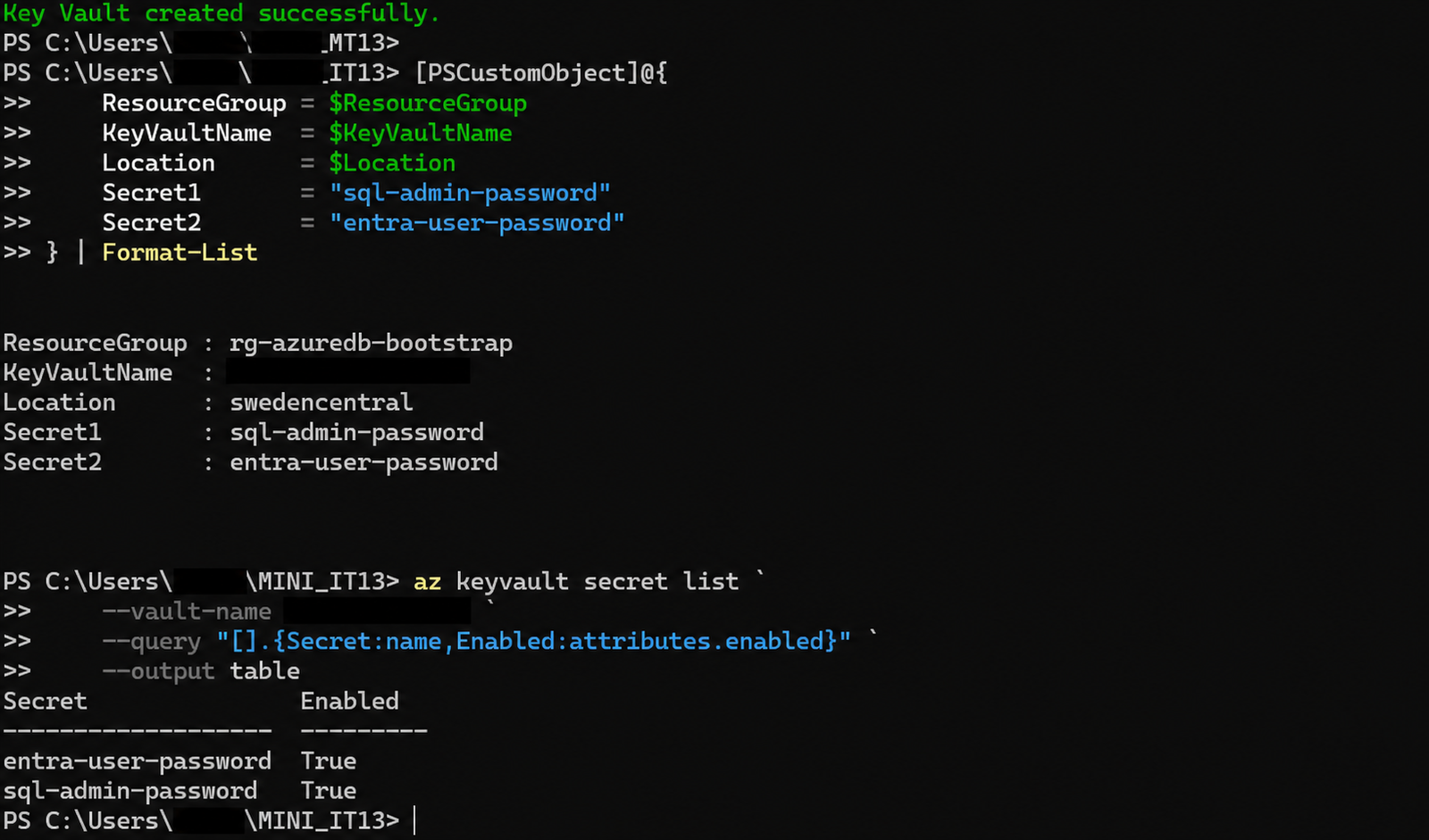
Store the vault name as a GitHub repository or environment variable because the vault name is configuration, not a secret:
$Repo = '<OWNER>/<REPOSITORY>'
gh variable set AZURE_KEY_VAULT_NAME --repo $Repo --body $KeyVaultName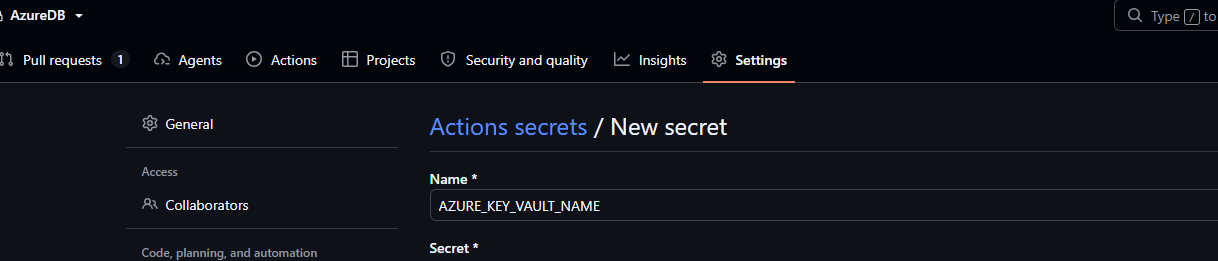
Step 2: Select the correct tenant and subscription
$TenantId       = '<TENANT-ID>'
$SubscriptionId = '<SUBSCRIPTION-ID>'

az login --tenant $TenantId
az account set --subscription $SubscriptionId
az account show `
  --query '{subscription:id,tenant:tenantId,signedInAs:user.name}' `
  --output table
Step 3: Register the required Azure resource providers
$Providers = @(
  'Microsoft.Sql',
  'Microsoft.Insights',
  'Microsoft.OperationalInsights',
  'Microsoft.Storage'
)

foreach ($Provider in $Providers) {
  az provider register --namespace $Provider
}

az provider list `
  --query "[?namespace=='Microsoft.Sql' || namespace=='Microsoft.Insights' || namespace=='Microsoft.OperationalInsights' || namespace=='Microsoft.Storage'].{Provider:namespace,State:registrationState}" `
  --output table
Step 4: Create the deployment application and service principal
$GitHubAppName = 'sp-github-azuredb'

$App = az ad app create `
  --display-name $GitHubAppName `
  --output json | ConvertFrom-Json

az ad sp create --id $App.appId --output none

$ApplicationClientId       = $App.appId
$ApplicationObjectId       = $App.id
$ServicePrincipalObjectId  = az ad sp show `
  --id $ApplicationClientId `
  --query id `
  --output tsv

[PSCustomObject]@{
  ApplicationClientId      = $ApplicationClientId
  ApplicationObjectId      = $ApplicationObjectId
  ServicePrincipalObjectId = $ServicePrincipalObjectId
} | Format-List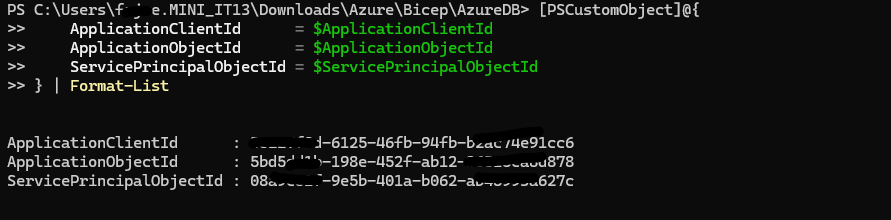
Step 5: Configure the GitHub OIDC federated credential
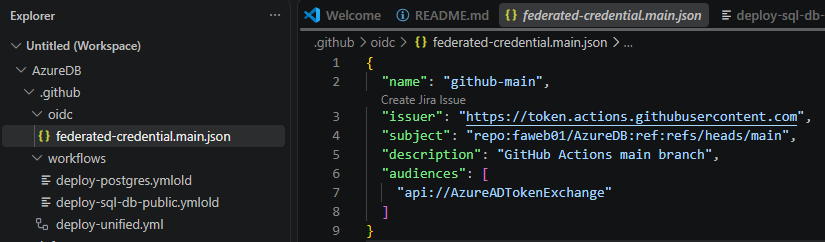
Create .github/oidc/federated-credential.main.json. The subject must exactly match the repository owner, repository name and branch used by the workflow.
{
  "name": "github-main",
  "issuer": "https://token.actions.githubusercontent.com",
  "subject": "repo:<OWNER>/<REPOSITORY>:ref:refs/heads/main",
  "description": "GitHub Actions main branch",
  "audiences": ["api://AzureADTokenExchange"]
}
az ad app federated-credential create `
  --id $ApplicationClientId `
  --parameters '.\.github\oidc\federated-credential.main.json' `
  --output none

az ad app federated-credential list `
  --id $ApplicationClientId `
  --output table
Step 6: Assign least-privilege Azure RBAC
The original deployment used Contributor at subscription scope. That works, but it is broader than many pipelines need. Prefer the narrowest practical scope, such as a dedicated resource group. Use subscription scope only when the workflow must create the resource group or deploy across several resource groups.
$DeploymentResourceGroup = 'rg-sql-public-dev'
$ResourceGroupScope = "/subscriptions/$SubscriptionId/resourceGroups/$DeploymentResourceGroup"

# Create the target resource group first when using resource-group scope.
az group create `
  --name $DeploymentResourceGroup `
  --location 'swedencentral' `
  --output none

az role assignment create `
  --assignee-object-id $ServicePrincipalObjectId `
  --assignee-principal-type ServicePrincipal `
  --role Contributor `
  --scope $ResourceGroupScope `
  --output none

az role assignment list `
  --assignee-object-id $ServicePrincipalObjectId `
  --scope $ResourceGroupScope `
  --include-inherited `
  --output table
Optional: Microsoft Graph permissions
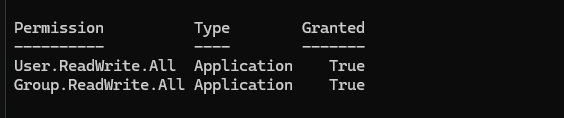
Do not grant Microsoft Graph application permissions for a basic Azure SQL infrastructure deployment. They are required only if the workflow itself creates or modifies Entra users or groups. If that functionality is genuinely required, grant only the specific permissions needed, obtain tenant-admin consent and document the additional risk.
Step 7: Configure GitHub Actions secrets and variables
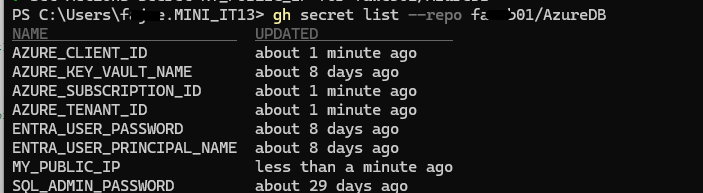
Create the following GitHub Actions values. Use environment secrets for production deployments when you want approval gates and stronger separation.
| Name | Type | Purpose |
|---|---|---|
AZURE_CLIENT_ID | Secret | Microsoft Entra application client ID |
AZURE_TENANT_ID | Secret | Microsoft Entra tenant ID |
AZURE_SUBSCRIPTION_ID | Secret | Target Azure subscription |
AZURE_KEY_VAULT_NAME | Variable | Bootstrap Key Vault name |
MY_PUBLIC_IP | Secret or variable | Temporary firewall rule source IP, when required |
SQL_ADMIN_PASSWORD | Secret | SQL administrator password when passed through the workflow |
$Repo = '<OWNER>/<REPOSITORY>'

$AZURE_CLIENT_ID       = $ApplicationClientId
$AZURE_TENANT_ID       = az account show --query tenantId --output tsv
$AZURE_SUBSCRIPTION_ID = az account show --query id --output tsv
$MY_PUBLIC_IP          = (Invoke-RestMethod -Uri 'https://api.ipify.org?format=text').Trim()

gh secret set AZURE_CLIENT_ID       --repo $Repo --body $AZURE_CLIENT_ID
gh secret set AZURE_TENANT_ID       --repo $Repo --body $AZURE_TENANT_ID
gh secret set AZURE_SUBSCRIPTION_ID --repo $Repo --body $AZURE_SUBSCRIPTION_ID
gh secret set MY_PUBLIC_IP          --repo $Repo --body $MY_PUBLIC_IP
gh variable set AZURE_KEY_VAULT_NAME --repo $Repo --body $KeyVaultName
Step 8: Authenticate and deploy from GitHub Actions
The workflow job needs id-token: write so GitHub can issue the OIDC token, plus contents: read to check out the repository.
name: Deploy Azure SQL with Bicep

on:
  workflow_dispatch:
    inputs:
      environment:
        description: Deployment environment
        required: true
        default: dev
        type: choice
        options: [dev, test, prod]

permissions:
  id-token: write
  contents: read

jobs:
  deploy:
    runs-on: ubuntu-latest
    environment: ${{ inputs.environment }}
    steps:
      - name: Checkout repository
        uses: actions/checkout@v4

      - name: Sign in to Azure with OIDC
        uses: azure/login@v2
        with:
          client-id: ${{ secrets.AZURE_CLIENT_ID }}
          tenant-id: ${{ secrets.AZURE_TENANT_ID }}
          subscription-id: ${{ secrets.AZURE_SUBSCRIPTION_ID }}

      - name: Validate Bicep deployment
        run: |
          az deployment group validate \
            --resource-group "rg-sql-public-${{ inputs.environment }}" \
            --template-file ./infra/main.bicep \
            --parameters environment="${{ inputs.environment }}" \
                         sqlAdminPassword="${{ secrets.SQL_ADMIN_PASSWORD }}" \
                         allowedIpAddress="${{ secrets.MY_PUBLIC_IP }}"

      - name: Preview Azure changes
        run: |
          az deployment group what-if \
            --resource-group "rg-sql-public-${{ inputs.environment }}" \
            --template-file ./infra/main.bicep \
            --parameters environment="${{ inputs.environment }}" \
                         sqlAdminPassword="${{ secrets.SQL_ADMIN_PASSWORD }}" \
                         allowedIpAddress="${{ secrets.MY_PUBLIC_IP }}"

      - name: Deploy Bicep template
        run: |
          az deployment group create \
            --name "azure-sql-${{ github.run_number }}" \
            --resource-group "rg-sql-public-${{ inputs.environment }}" \
            --template-file ./infra/main.bicep \
            --parameters environment="${{ inputs.environment }}" \
                         sqlAdminPassword="${{ secrets.SQL_ADMIN_PASSWORD }}" \
                         allowedIpAddress="${{ secrets.MY_PUBLIC_IP }}"
Run the workflow from GitHub or with GitHub CLI:
gh workflow run deploy-unified.yml `
  --repo '<OWNER>/<REPOSITORY>' `
  --ref main `
  --field database_type=azuresql `
  --field environment=dev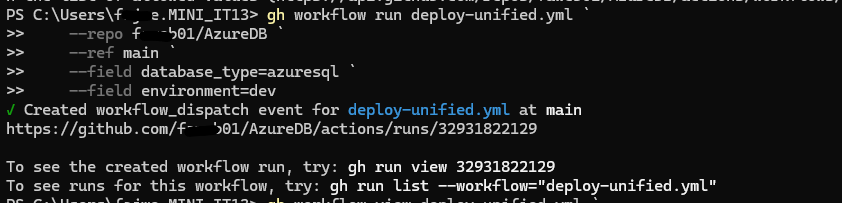
gh run list `
  --repo '<OWNER>/<REPOSITORY>' `
  --workflow deploy-unified.yml `
  --limit 3

gh run watch <RUN-ID> `
  --repo '<OWNER>/<REPOSITORY>' `
  --exit-status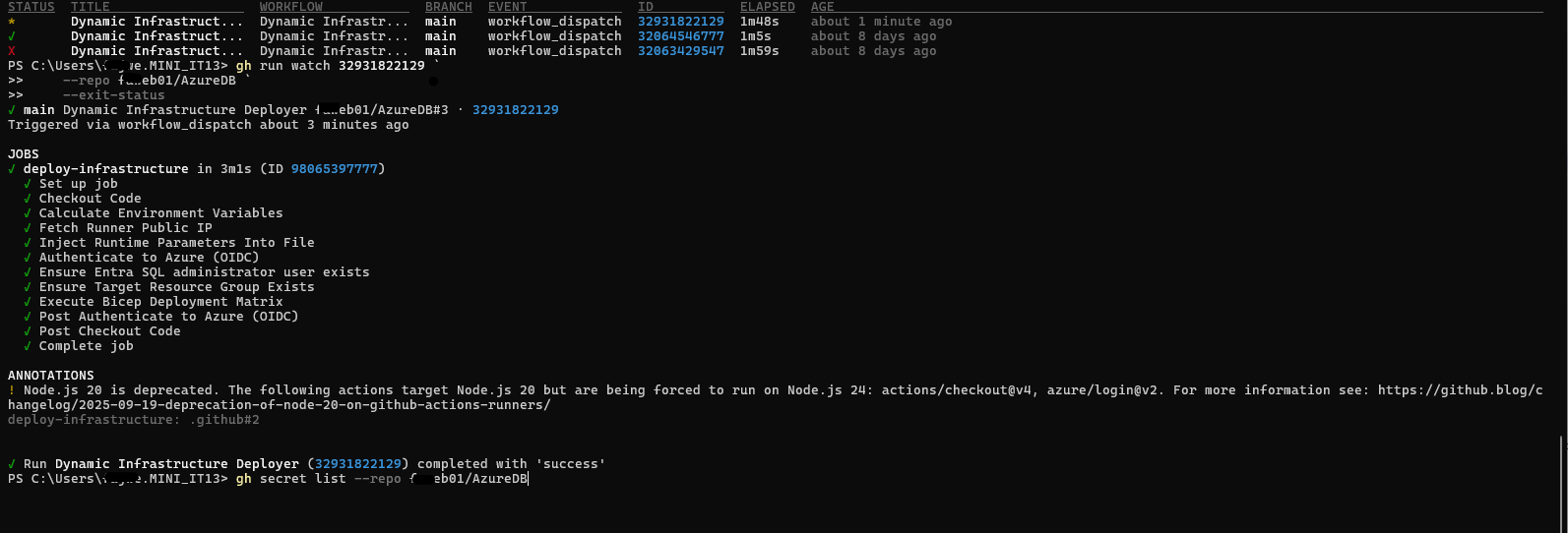
Step 9: Verify the deployed Azure resources
az resource list `
  --resource-group 'rg-sql-public-dev' `
  --query "[].{Name:name,Type:type,Location:location}" `
  --output table
- SQL logical server
- User database
- Log Analytics workspace
- Audit storage account
Step 10: Test database connectivity
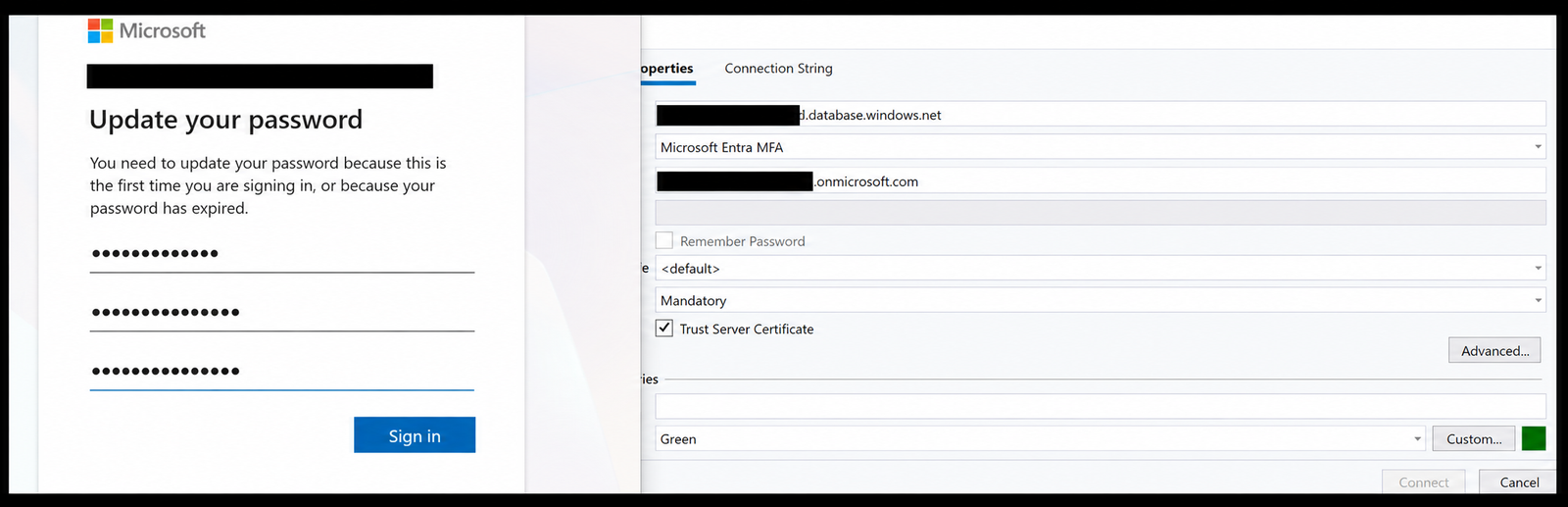
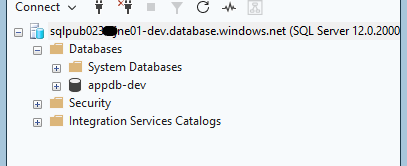
Connect with SQL Server Management Studio or Azure Data Studio using the server’s fully qualified domain name. If the deployment created an Entra user with a temporary password, complete the required password update before testing the database connection.
Common Problems
| Problem | What to check |
|---|---|
| OIDC login fails | The federated credential subject exactly matches the repository, branch or GitHub environment. |
| Workflow cannot deploy | The service principal has an appropriate role at the actual deployment scope. |
| ProviderNotRegistered | All required Azure resource providers have reached the Registered state. |
| SQL connection is blocked | The firewall rule contains the runner/client public IP and the server name is correct. |
| Audit logs do not arrive | The auditing and diagnostic-settings resources both target valid destinations. |
Summary
You now have a repeatable Azure SQL deployment pipeline built with Bicep and GitHub Actions. OIDC removes the need for a long-lived Azure client secret, Bicep keeps the infrastructure definition version-controlled, and workflow validation plus what-if makes changes easier to review before deployment.
Leave a Reply