A hands-on guide to setup, failover, headless recovery, and IaC deployment with Bitbucket Pipelines
April 6, 2025 | Database | AWS Aurora
Introduction
As businesses expand globally, ensuring database availability and performance across different regions becomes critical. I recently conducted hands-on testing with Amazon Aurora Global Database, exploring the setup process, failover capabilities, and operational considerations. In this post, I\’ll share my experience and findings from building a real Aurora Global Database spanning EU-West-1 (Ireland) and EU-West-3 (Paris) regions.
Prerequisites: Before You Begin
To follow this guide and successfully deploy an Aurora Global Database across multiple AWS Regions, ensure the following are in place:
1. AWS Account Access
- You must have access to an AWS account with sufficient permissions to create and manage:
- RDS Aurora clusters
- VPC, Subnet Groups
- Security Groups (SG)
- IAM roles (for Bitbucket pipelines or CLI access)
- CloudFormation Stacks
2. Networking – VPC & Subnets
- Primary Region (e.g.,
eu-west-1) and Secondary Region (e.g.,eu-west-3) must each have:- A dedicated VPC (
10.0.0.0/16,10.1.0.0/16, etc.) - Public or private subnets in at least two Availability Zones (AZs) per region
- DB Subnet Groups defined and mapped to those subnets
- A dedicated VPC (
3. Security Groups
- Ensure Security Groups allow inbound access on the Aurora port (typically TCP 3306).
- Add your IP or allowed CIDR block to the SGs to ensure you can connect (especially post-failover).
4. Aurora-Compatible Engine
- Aurora Global DB requires:
- Aurora MySQL 5.7+, 8.0+, or Aurora PostgreSQL 11.x+
- Ensure you use an instance class supported by Global DB, such as
db.r5.large.
Note: Instances likedb.t4g.mediumare not supported for Global DBs.
Building a Multi-Region Aurora Global Database
A hands-on guide to setup, failover, headless recovery, and IaC deployment with Bitbucket Pipelines
April 2025
Aurora Global Databases allow a single Amazon Aurora database to span multiple AWS regions, offering sub-second replication, global read scaling, and disaster recovery with cross-region failover. This guide walks through the full lifecycle: creating a global cluster via the AWS Console, testing failover, adding secondary regions, handling headless clusters, and automating the entire setup with CloudFormation and Bitbucket Pipelines.
1. Creating the Primary Aurora Cluster
Start in the AWS RDS Console. Navigate to Databases → Create database and follow the steps below.
Engine & edition
- Engine: Aurora MySQL or Aurora PostgreSQL
- Edition: Amazon Aurora (not Serverless v1)
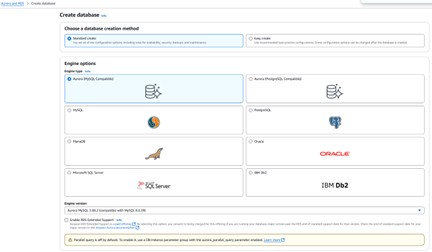
Selecting the Aurora engine in the RDS Console
Key configuration choices
- Templates — use Dev/Test only for non-production environments.
- Credentials — AWS Secrets Manager is the most secure option; alternatively use auto-generated or manually set passwords.
- Instance class — db.t4g.medium (2 vCPU / 4 GB) is sufficient for testing. For production, AWS recommends db.r5 or higher.
- Storage — Aurora I/O-Optimized offers predictable pricing when I/O costs exceed 25% of your total database spend. Aurora Standard uses pay-per-request I/O.
- Multi-AZ — optional at this stage but strongly recommended for high availability.
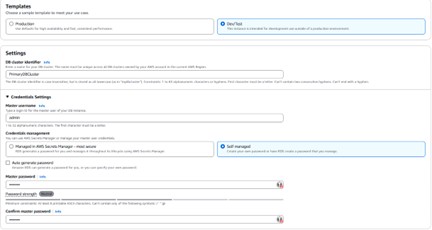
Instance and storage configuration options
Connectivity
Choose your VPC and leave the remaining networking defaults in place for testing. The walkthrough uses the default VPC with a db subnet group already configured.
💡 Setting Public Access to “Yes” is convenient for testing but is not recommended in production. Use a bastion host or VPN instead.
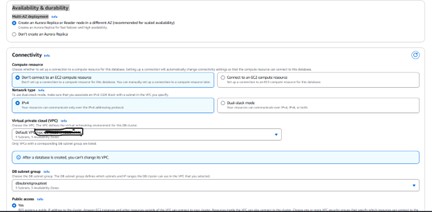
Connectivity and VPC settings
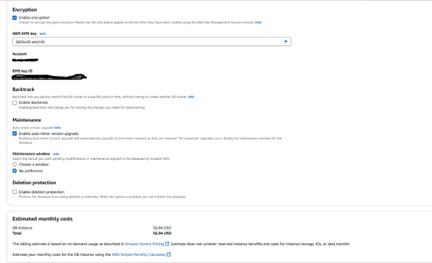
Additional configuration — setting the initial database name to “PrimaryDB”
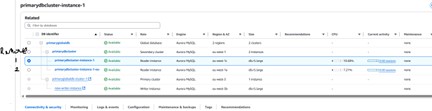
Once created, the cluster spans two Availability Zones (eu-west-1a and eu-west-1c in this example). AZs within a region are typically a few to 60 miles apart — close enough for low latency, far enough to isolate hardware failures.
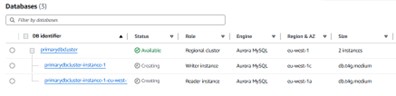
Cluster spanning eu-west-1a and eu-west-1c
2. Testing AZ Failover
Before going global, it is worth understanding how quickly Aurora handles a failover within the same region. The script below continuously polls the cluster endpoint and measures downtime.
Failover timing script
MYSQL_PWD="password"

export MYSQL_PWD

start_time=""

while true; do

  now=$(date +"%T.%3N")

  result=$(mysql -h primarydbcluster.cluster-cnso8qk00740.eu-west-1.rds.amazonaws.com \

          -u admin -D testdb -e "SELECT CURRENT_TIMESTAMP(2);" 2>&1)

  if [[ $? -eq 0 ]]; then

    echo " [$now] Connected: $result"

    if [[ -n "$start_time" ]]; then

      end_time=$(date +%s%3N)

      duration=$((end_time - start_time))

      echo " Recovered after ${duration} ms"

      start_time=""

    fi

  else

    echo " [$now] Failed: $result"

    [[ -z "$start_time" ]] && start_time=$(date +%s%3N)

  fi

  sleep 1

done
Script output during a controlled failover
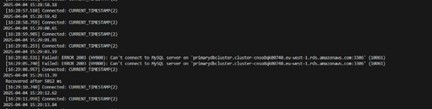
Connection loss and recovery logs
Results from two failover tests:
- Controlled failover (via AWS Console): recovered in 5,012 ms (~5 seconds)
- Simulated uncontrolled failover (primary reboot): recovered in 3,344 ms (~3.3 seconds)
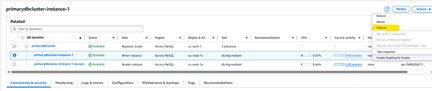
After failover, the writer endpoint moves to eu-west-1a.

Writer endpoint now pointing to eu-west-1a after failover
3. Adding a Secondary Region
To create a true Aurora Global Database, a secondary cluster must be attached in a different AWS region. From the primary cluster view, choose Add region.
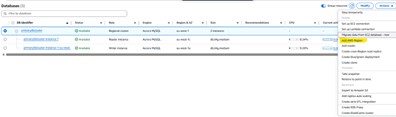
Add region panel for the Aurora global database
Configuration notes for the secondary region
- The secondary region cannot be the same as the primary, nor can it already host another secondary cluster for the same global database.
- Instance classes for Global Databases are limited to Serverless v2 and Memory Optimized (r-class). Burstable (t-class) instances are not supported.
- Global write forwarding is an optional setting that allows secondary clusters to forward writes to the primary. This walkthrough leaves it disabled.
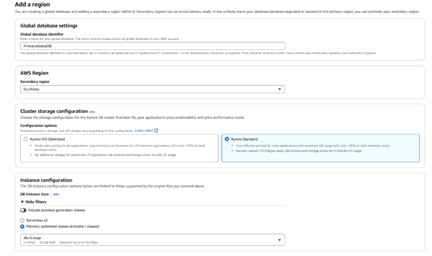
Secondary region configuration — storage and instance settings
⚠️ The initial attempt failed because db.t4g.medium is not supported for Global Databases. Upgrading both clusters to db.r5.large resolved the issue.
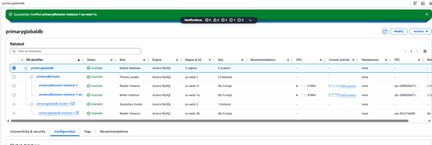
Error: t-class instances are not supported for Aurora Global Databases

Global database successfully created after upgrading to db.r5.large
Verifying cross-region replication
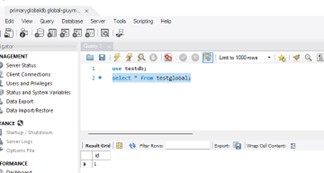
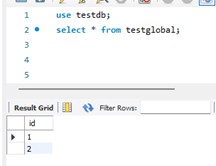
After adding the secondary region, create a test table and insert data via the primary cluster endpoint, then verify it appears on the global endpoint.
use testdb;

CREATE TABLE testglobal (id INT);

INSERT INTO testglobal (id) VALUES (1);

Connected to the global cluster endpoint
Data replicated to the secondary region as confirmed via the global endpoint
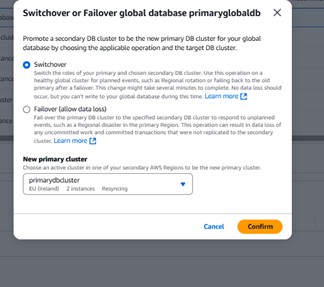
4. Switchover and Failover
Aurora Global Databases support two promotion operations, each suited to a different scenario.
Switchover (planned, no data loss)
Use switchover for planned events such as regional rotation or failing back to the original primary after a failover. The operation may take several minutes and writes are paused during the transition, but no data is lost.
Failover (unplanned, potential data loss)
Use failover to respond to a regional disaster when the primary region is unavailable. Uncommitted work and any transactions not yet replicated to the secondary may be lost.
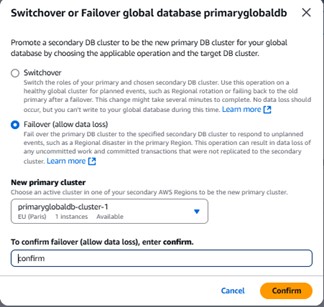
AWS Console UI for initiating switchover or failover on the global database
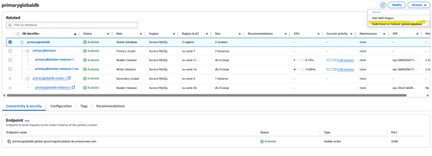
💡 After a failover, ensure your IP address is added to the security group in the new primary region — otherwise you will not be able to connect to the global endpoint.
Connection failure after failover due to security group restrictions
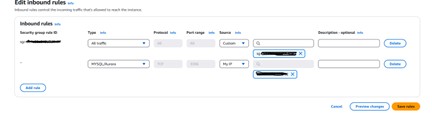
Adding your IP to the security group in the secondary region

Security group rule updated
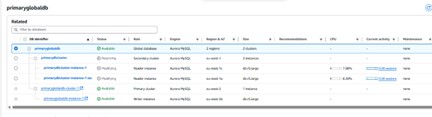
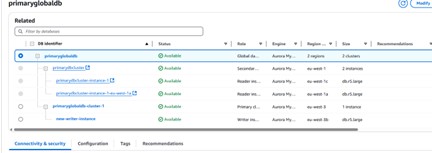
Failover event log: global failover to eu-west-3 completed
Global database cluster roles following failover
Switchover back to the original primary
Switching back follows the same process. The script below captured the connection interruption during the switchover operation:
[21:59:10.040] Connected

[21:59:11.340] Failed: Lost connection to MySQL server

[21:59:12.519] Failed: Can't connect to MySQL server (10061)

[21:59:15.757] Connected — Recovered after 5068 ms
Total downtime: approximately 5 seconds. The new primary in eu-west-1 was promoted and the previous secondary in eu-west-3 was cleanly shut down.
5. Creating a Headless Cluster
A headless Aurora cluster is one with no DB instances attached. This is sometimes used to save compute costs while preserving the cluster configuration and storage. The steps below deliberately create this state for demonstration purposes.
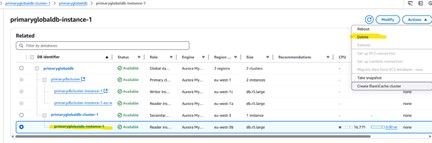
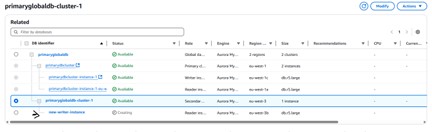
Deleting the reader instance from the secondary cluster
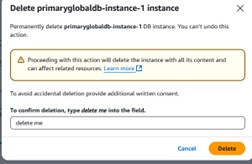
Confirmation prompt before deleting the instance
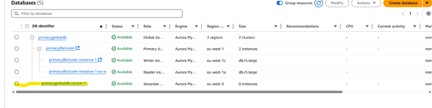
Cluster remains but 0 instances are attached
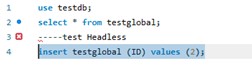
Cluster endpoint still visible with no instances

Switchover and failover options are disabled without a secondary instance
⚠️ Without a DB instance in the secondary cluster, failover to that region is not possible. Ensure at least one instance exists in each cluster before relying on them for disaster recovery.
6. Recovering a Headless Aurora Cluster
The AWS Console does not provide a UI option to attach a new DB instance to an existing Aurora cluster that has no instances. Recovery must be done via the AWS CLI.
Example: headless cluster in eu-west-3
- Cluster identifier: primaryglobaldb-cluster-1
- Region: eu-west-3
- Endpoint: primaryglobaldb-cluster-1.cluster-cfeyai4owt66.eu-west-3.rds.amazonaws.com
CLI command to reattach an instance
aws rds create-db-instance \

  --db-instance-identifier new-writer-instance \

  --db-cluster-identifier primaryglobaldb-cluster-1 \

  --engine aurora-mysql \

  --db-instance-class db.t4g.small \

  --region eu-west-3 \

  --publicly-accessible
This command creates and attaches a new compute instance to the existing cluster without affecting the data stored in Aurora’s shared storage layer.
Deleting a global database
To delete an Aurora Global Database, you must first remove or delete all clusters within it. The console blocks deletion at the top-level global database object until the member clusters have been detached.
Removing the secondary cluster from the global database
Secondary cluster removed
Detaching the secondary cluster to convert it to a standalone cluster
Standalone cluster created from the former secondary
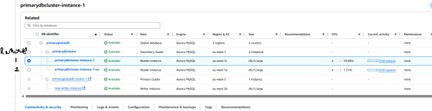
Secondary cluster successfully detached

Now removing the primary cluster before deleting the global database
7. Automation with CloudFormation and Bitbucket Pipelines
CloudFormation cannot span multiple AWS regions in a single template. The solution is to use two stacks — one per region — and orchestrate them through a Bitbucket pipeline.
Architecture overview
- Primary region (e.g. eu-west-1): creates the Global DB, DB Cluster (writer), Subnet Group, Parameter Groups, and Instances.
- Secondary region (e.g. us-west-2): attaches to the Global DB by referencing the GlobalClusterIdentifier, then creates its Subnet Group, Cluster, and Reader Instances.

Two-stack architecture for a multi-region Aurora Global Database
Repository structure
bitbucket-pipelines.yml
infra/
├── aurora-global-primary.yaml
└── aurora-global-secondary.yaml
Create the files using PowerShell if on Windows:
New-Item -ItemType Directory -Path .\infra -Force

New-Item -ItemType File -Path .\infra\aurora-global-primary.yaml -Force

New-Item -ItemType File -Path .\infra\aurora-global-secondary.yaml -Force

New-Item -ItemType File -Path .\bitbucket-pipelines.yml -Force
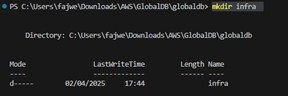
Repository structure in VS Code
Bitbucket repository variables
Add the following under Repository Settings → Repository Variables:
| Variable Name | Example Value |
| DB_MASTER_USERNAME | admin |
| DB_MASTER_PASSWORD | RuperpassworD1! |
| VPC_CIDR_PRIMARY | 10.0.0.0/16 |
| VPC_CIDR_SECONDARY | 10.1.0.0/16 |
| IP_ALLOW | 10.0.0.0/16 or 0.0.0.0/0 |
| SNAPSHOT_ID | (leave blank or provide full ARN) |
Additionally, add the following under Repository Settings → Settings:
- AWS_ACCESS_KEY_ID
- AWS_SECRET_ACCESS_KEY
- MASTER_DB_PASSWORD
💡 Consider using Bitbucket OpenID Connect (OIDC) with IAM roles instead of long-lived access keys for improved security.
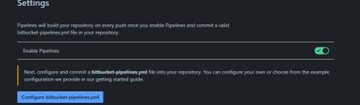
Enabling pipelines in Bitbucket repository settings
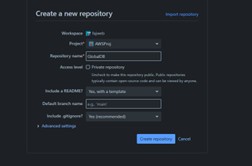
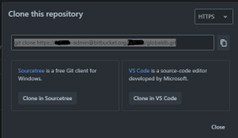
Cloning the repository locally
Required IAM permissions
The IAM role or credentials used by the Bitbucket pipeline must have at least the following permissions:
- cloudformation:CreateStack
- cloudformation:UpdateStack
- rds:* (or the specific RDS permissions required)
Pipeline workflow
Running git push to the main branch triggers the pipeline. The aws cloudformation deploy command creates the stack if it does not exist or updates it if it does:
git add .

git commit -m "Fix cluster conflict by using conditional properties"

git push origin main
To test without deploying, push to a feature branch:
git checkout -b validate-template-test

git push origin validate-template-test
8. Configuration Comparison
| Feature | Console Setup | Headless / CLI Setup |
| Ease of Use | ✅ Simple UI | 🛠️ Advanced/Scripted |
| Control | ❌ Limited | ✅ Full control |
| Automation | Partial | ✅ Fully scriptable |
| Deployment Time | Faster | Slower but flexible |
9. Supported Engines, Limits, and Capabilities
| Feature | Aurora MySQL | Aurora PostgreSQL |
| Global DB Support | ✅ Yes | ✅ Yes |
| Engine Version Required | 2.x+ (MySQL 5.7/8.0) | 11.x+ |
| Automatic Failover | ❌ Manual only | ❌ Manual only |
| Max Secondary Regions | 5 | 5 |
| Multi-AZ Required? | ❌ Recommended | ❌ Recommended |
| Replication Lag | ~1 second | Similar |
| Write Access | Primary only | Primary only |
10. Cost and Benefits
What you pay for
- Compute and storage for primary and secondary clusters
- Inter-region replication data transfer
- Optional: Multi-AZ instances, automated backups, snapshots
⚠️ There is no free tier for Aurora Global Databases. For testing, use the smallest supported instance class (db.t4g.small or db.r5.large) and shut down clusters when not in use.
Why it is worth it
- High availability across continents with sub-second replication lag
- Read scaling: route regional read traffic to the nearest secondary cluster
- Disaster recovery: manual cross-region failover in the event of a regional outage
Teardown
When finished, delete resources in this order to avoid dependency errors:
- 1. Delete reader instances in secondary clusters
- 2. Detach or delete secondary clusters from the global database
- 3. Delete the primary cluster
- 4. Delete the global database object
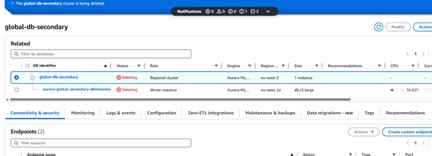
Deleting the reader instance in the secondary cluster

Final teardown complete — global database removed
End of guide — Aurora Global Database setup, failover, and automation.
Cleanup Process
Cleaning up an Aurora Global Database requires a specific sequence:
1. First, I removed the secondary cluster from the global database and promoted it to a standalone cluster
2. Next, I removed the primary cluster from the global database
3. Finally, I deleted the individual clusters
If you attempt to delete components out of order, you\’ll receive helpful error messages guiding you through the correct sequence.
Key Learnings
From my hands-on testing with Aurora Global Database, I gathered several important insights:
1. Instance Class Requirements: You must use db.r5 or higher for Global Database; t-class instances will not work
2. Security Planning: Remember to configure security groups in all regions
3. Failover Performance: Regional failover completes in 3-5 seconds; global failover/switchover takes slightly longer
4. Recovery Procedures: AWS CLI is essential for recovering headless clusters
5. Cost Considerations: Using r5.large instances in multiple regions increases costs significantly compared to standard Aurora clusters
Conclusion
Aurora Global Database provides a robust solution for global disaster recovery and read scaling. My testing confirmed that it delivers on its promises of cross-region replication with minimal lag and straightforward failover procedures. The ability to maintain a consistent database across continents opens new possibilities for globally distributed applications.
While there are additional costs and complexity compared to regional Aurora clusters, the benefits for critical workloads requiring global resilience are well worth the investment. Just remember to use the right instance classes from the start!
Related Content
Aurora Global Database Documentation